
Revenue Split Calculator Guide for Multi-Payee Payouts
A multi-payee revenue split calculator guide for teams that need clear split math, retained revenue checks, deductions, statements, and audit evidence.
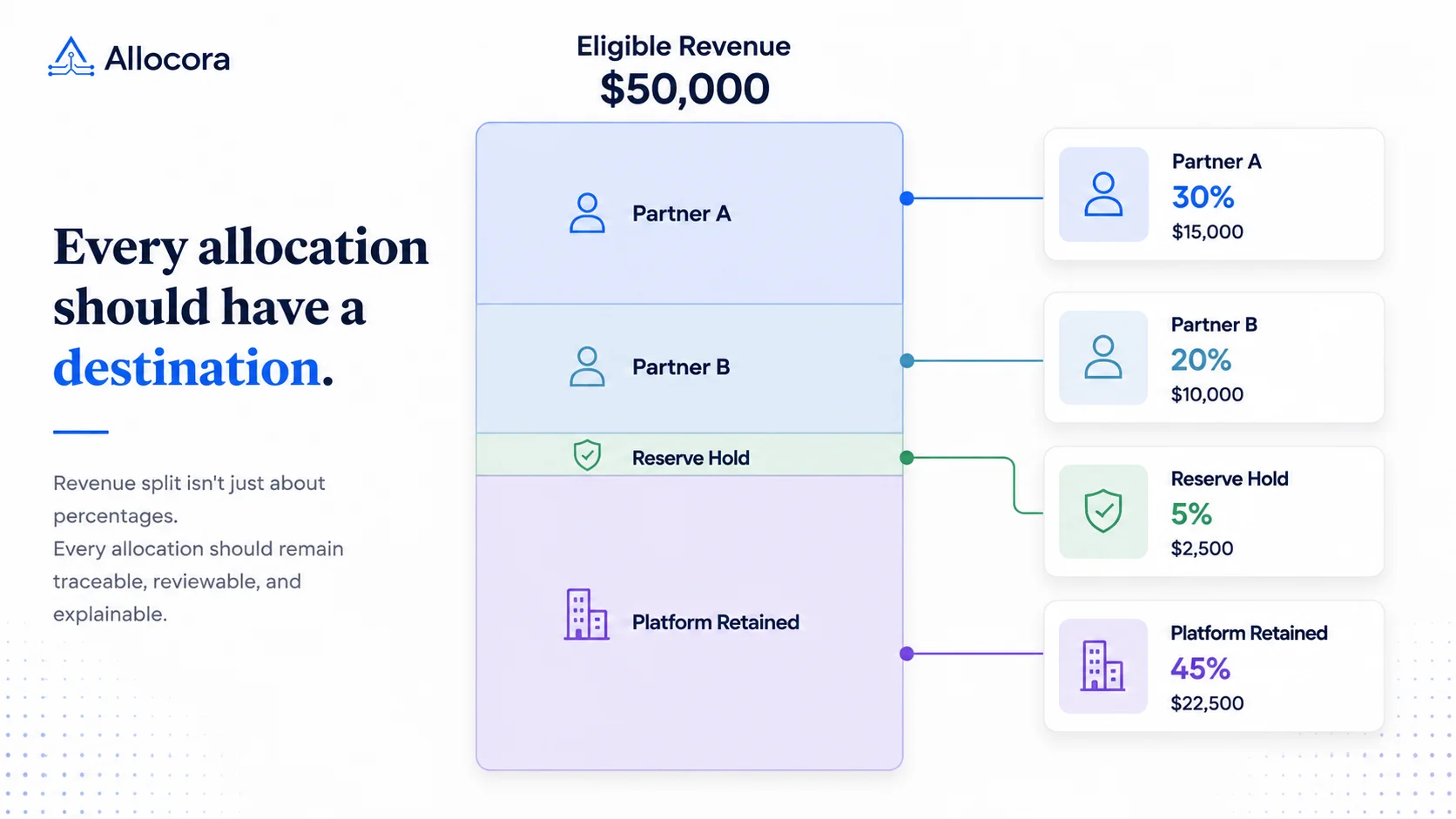
A revenue split calculator shows how one pool of revenue is divided across multiple parties. For a monthly payout workflow, it also needs to preserve enough context to explain the result after the payout file has been sent.
Use this guide when a split needs to become part of a monthly payout close.
Quick answer
To calculate a revenue split, first define the eligible revenue base. Then apply deductions in the agreed order, calculate each payee share, and leave any retained revenue visible. The result should reconcile back to the full eligible amount.
Try the free Revenue Split Calculator to model a three-payee split with a platform fee, reserve, and adjustment.
Allocora's free calculator uses gross shared revenue, a platform fee percentage, a reserve percentage, a signed adjustment, and exactly three payee percentages.
It shows gross revenue, aggregate deductions, the adjustment, the net amount to split, and each payee's normalized share and amount. If the entered percentages have a positive total other than 100%, the calculator normalizes them to 100% for the scenario. Rounding is fixed rather than selected by the user.
A governed recurring workflow should additionally document the eligible revenue definition, deduction order, allocation policy, retained-revenue treatment, and rounding policy.
Revenue split formulas
For Allocora's free calculator:
net_split = gross_revenue - platform_fee - reserve + adjustment
The formulas below describe a governed workflow, not the normalization behavior of the free calculator.
After the three entered payee percentages are normalized:
net_split = total_payee_amount
For a governed fixed-percentage split:
payee_amount = eligible_revenue × payee_percentage
For multiple payees:
total_payee_amount = sum of all payee allocations
For retained revenue:
retained_revenue = eligible_revenue - total_payee_amount - reserve_or_holdback
For a post-fee split:
eligible_revenue = gross_revenue - taxes - refunds - excluded_fees
Every completed calculation should reconcile:
eligible_revenue = total_payee_amount + reserve_or_holdback + retained_revenue
If the totals do not reconcile, the calculator should flag the difference before export.
Step 1: choose the split base
The split base is the amount that rules apply to. It may be:
- Gross invoice revenue.
- Net revenue after refunds.
- Subscription revenue for the period.
- Marketplace order value after platform fees.
- Royalty revenue after distributor deductions.
- Agency revenue after media spend or pass-through costs.
Write the base in plain language. If a partner agreement says "net revenue," define what net means in the system, not just in a comment.
If the agreement also uses thresholds, review the difference between marginal and retroactive tiered commissions before applying the split.
Step 2: decide deduction order
Deduction order changes payouts. Consider a $10,000 transaction with a 10% platform fee and a 30% partner split.
| Method | Calculation | Partner amount |
|---|---|---|
| Split gross first | $10,000 × 30% | $3,000 |
| Deduct platform fee first | $9,000 × 30% | $2,700 |
Both can be correct, but only one matches the agreement. The deduction method must remain visible in the result.
Step 3: model every allocation destination
Multi-party splits often include both external payees and internal allocation destinations:
- Partner or affiliate.
- Marketplace seller.
- Agency collaborator.
- Licensor or rights holder.
- Platform or house share.
- Reserve, holdback, or clearing account.
If the calculator only shows two parties, it may hide the operational reality. Keep a separate row for retained revenue or house share so any unexplained remainder or over-allocation is immediately visible.
Step 4: check for over-allocation
Over-allocation happens when total allocations exceed the eligible base. Under-allocation happens when total allocations fall below the eligible base and the remaining amount has no defined destination.
| Check | Healthy result |
|---|---|
| Sum of percentages | Free calculator normalizes any positive total to 100%; workspace rules use reject, warn, or cap |
| Retained amount | Visible and explainable |
| Fallback rule usage | Explicit, expected, and reviewed |
| Negative payout lines | Tied to refunds or adjustments |
Do not hide the retained amount. It is one of the fastest ways to catch a missing payee, stale rule, or wrong base.
Example multi-payee calculation
Assume $50,000 of eligible revenue after refunds and exclusions.
| Allocation destination | Rule | Amount |
|---|---|---|
| Partner A | 30% | $15,000 |
| Partner B | 20% | $10,000 |
| Reserve hold | 5% | $2,500 |
| Platform retained | Remainder | $22,500 |
In this governed-workflow example, reserve is tracked separately from platform-retained revenue. In the free calculator, reserve is deducted from gross revenue before the net split is allocated. Any later reserve release requires separate operational handling.
The arithmetic is straightforward. The reviewer still needs to confirm that both partner shares, the reserve, and the platform remainder match the product, period, and contract.
From calculator result to governed close
Internal close evidence can include:
- Source period.
- Eligible revenue.
- Deduction policy.
- Applied rule references.
- Payee allocations.
- Retained and reconciliation totals.
- Refunds and adjustments.
- Calculation run reference.
Payee-facing statements are narrower. They expose approved payee-scoped economics without exposing internal calculation-rule configuration or organization-retained revenue.
This separation lets internal reviewers reproduce the calculation without crossing the payee data-disclosure boundary.
The partner settlements workflow shows how reviewed calculations, statements, and exports can stay connected through close.
Common calculator mistakes
Avoid these patterns:
- Splitting gross revenue when the agreement says net.
- Rounding each transaction too early.
- Applying the same split to every product.
- Mixing currencies before conversion.
- Letting a fallback rule process unknown payees.
- Exporting a payout file before exceptions are reviewed.
If those risks are part of the monthly close, the audit-ready settlements workflow shows which controls need to exist before approval.
When to move beyond a calculator
A calculator is enough for estimates and sales planning. Once the same split becomes part of a recurring close, the Revenue Split Automation workflow provides the next operational step. Monthly close usually requires repeatability, review controls, and evidence that a standalone calculator cannot preserve.
FAQ
What is the simplest revenue split formula?
Eligible revenue multiplied by the payee percentage. The harder part is proving that the eligible revenue base and percentage were the correct ones for the period.
Should fees be deducted before or after the split?
Use the agreement. If the agreement is unclear, document the policy before calculating. Fee treatment can cause partner disputes.
How many payees can one revenue row support?
Operationally, one row can support multiple payees if the system records each allocation and retained amount. The statement should explain every payee line separately.
What happens if percentages do not add up to 100%?
Allocora's free calculator normalizes the three entered payee percentages to 100% whenever their positive total differs from 100%, and it shows the normalized shares used for the scenario. Governed workspace rules use the organization's over-allocation policy: reject (the default) blocks a flat rule above 100% from being saved, warn allows it and surfaces an over-allocation warning, and cap allows it but proportionally scales the calculated allocations so their total does not exceed 100% of each revenue item. These workspace policies do not change the free calculator's normalization behavior.
How should revenue split calculations handle rounding?
Use a documented rounding policy and apply it consistently. Avoid rounding each intermediate step when possible. Any final rounding remainder should be assigned using a defined rule rather than hidden in the export.
Related Articles
 How to Automate Revenue Splits Without Spreadsheet Chaos
A practical guide for teams replacing fragile revenue split spreadsheets with governed, repeatable settlement workflows.
Jul 28, 2026 - 8 min read
How to Automate Revenue Splits Without Spreadsheet Chaos
A practical guide for teams replacing fragile revenue split spreadsheets with governed, repeatable settlement workflows.
Jul 28, 2026 - 8 min read
 Agency Revenue Share Calculations That Survive Partner Review
A launch article for agencies and service businesses replacing partner revenue-share spreadsheets with governed calculation runs.
Jul 09, 2026 - 8 min read
Agency Revenue Share Calculations That Survive Partner Review
A launch article for agencies and service businesses replacing partner revenue-share spreadsheets with governed calculation runs.
Jul 09, 2026 - 8 min read